
 Cathena AI cat companion
 VISEFF AI photo effects
A Free Online Visual Timer for Class, Homework and Bedtime
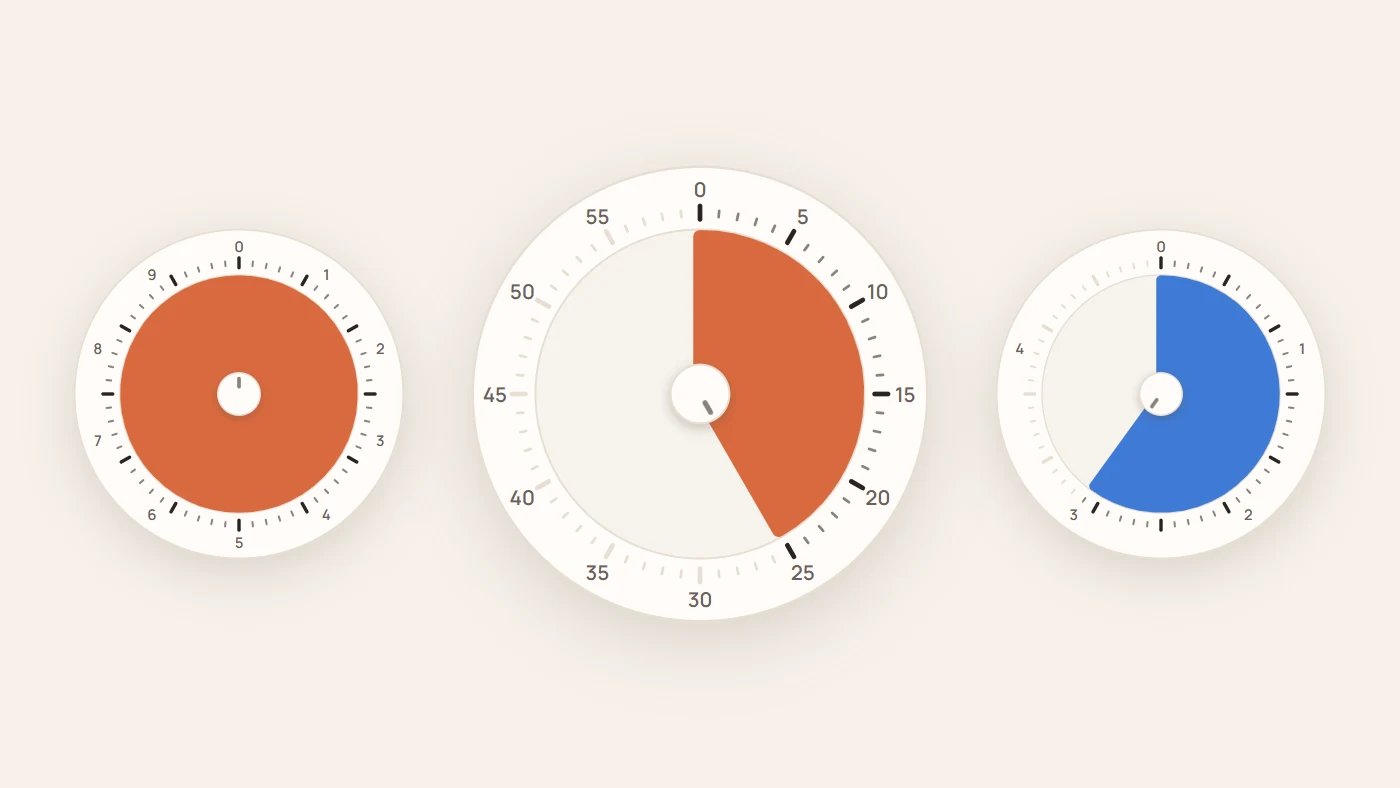
"Five more minutes" means very little to someone who can't read a clock yet. A visual timer shows the time left as a colored slice that gets smaller, so a glance is enough. Our online visual timer does this in the browser: free, with no account and nothing to install.
Quick answers
How do I start? Open the visual timer, drag the dial or tap a quick time, and press Start.
What does it run on? A phone, tablet or computer with a current browser. For a projector or interactive whiteboard, press Full screen.
Does it cost anything? No. The page is free and has no ads.
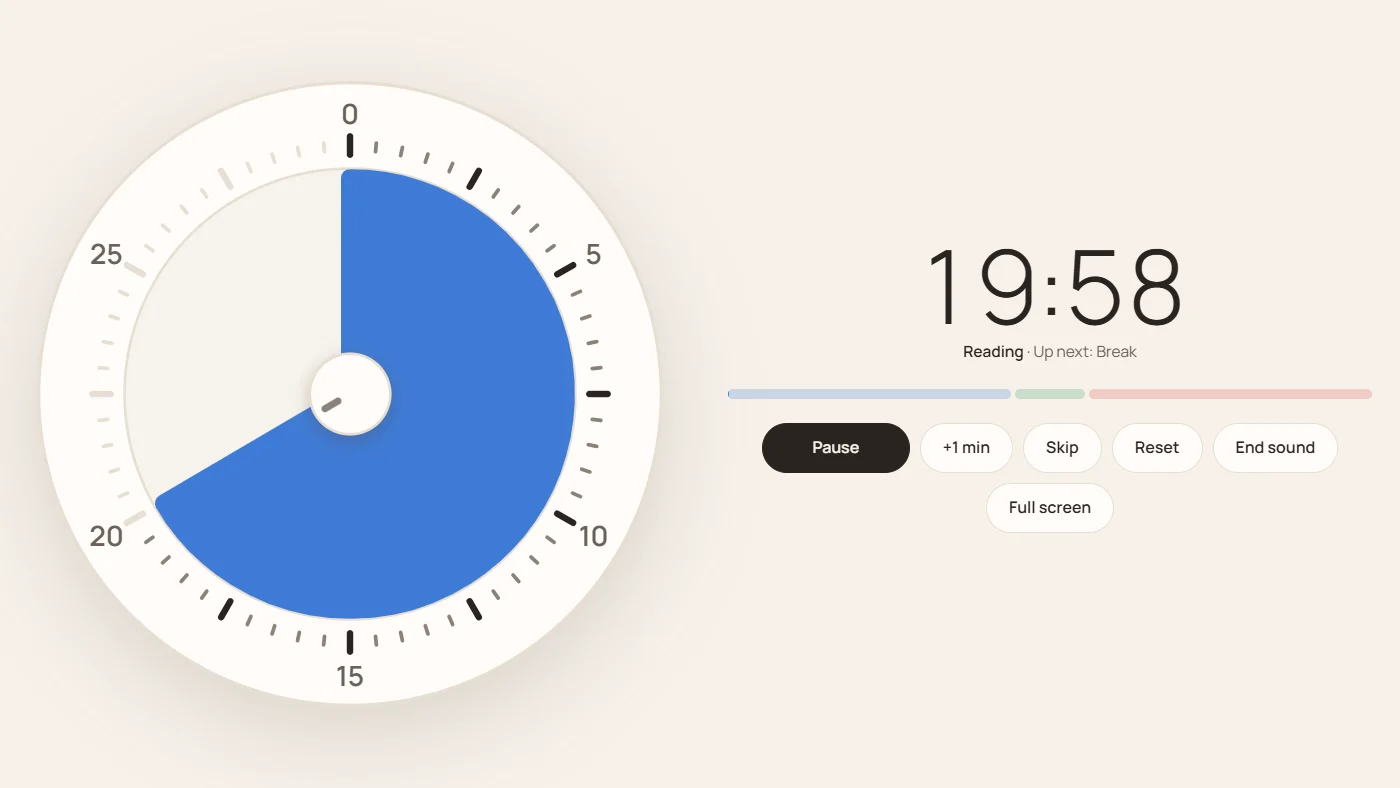 Full screen on a wide display: the dial, the time left, the current step and what comes next.
Which length should you pick?
Each length has its own page, with the dial already set. Bookmark the ones you use most.
| Time | Good for |
|---|---|
| 1 minute | a breathing break, one quiet minute |
| 2 minutes | brushing teeth, taking turns |
| 3 minutes | a quick tidy-up, a short talk |
| 5 minutes | a classroom warm-up, putting toys away |
| 10 minutes | reading, stretching, a clean-up |
| 15 minutes | a quiz, music practice |
| 20 minutes | homework, quiet reading |
| 25 minutes | one Pomodoro focus session |
| 30 minutes | screen time, a meeting |
| 45 minutes | a class period, a study block |
| 60 minutes | an exam, a workshop |
On the short pages the dial covers less time: five minutes fill the whole circle on the 5-minute page, so each minute is easy to see.
Use it in class
- Open the timer on the computer connected to your projector and press Full screen.
- Set the time by dragging the dial, or tap a quick time.
- Press Start. The space bar also starts and pauses.
- Need a little longer? +1 min adds a minute without starting over.
If you don't want a sound at the end, turn off End sound first. For a whole lesson, open Class period: lesson, group work and wrap-up follow each other automatically, and the screen shows what comes next.
Build a routine step by step
Morning and bedtime are several small jobs in a row. The Routines tab runs them one after another:
- Morning routine: brush teeth, get dressed, breakfast, pack bag
- Homework: reading, a break, math
- Bedtime: bath, pajamas, brush teeth, story time, lights out
- Quick workout: warm-up, exercise, cool-down
Change the name, the minutes or the color of any step, and add or remove steps until it fits your family.
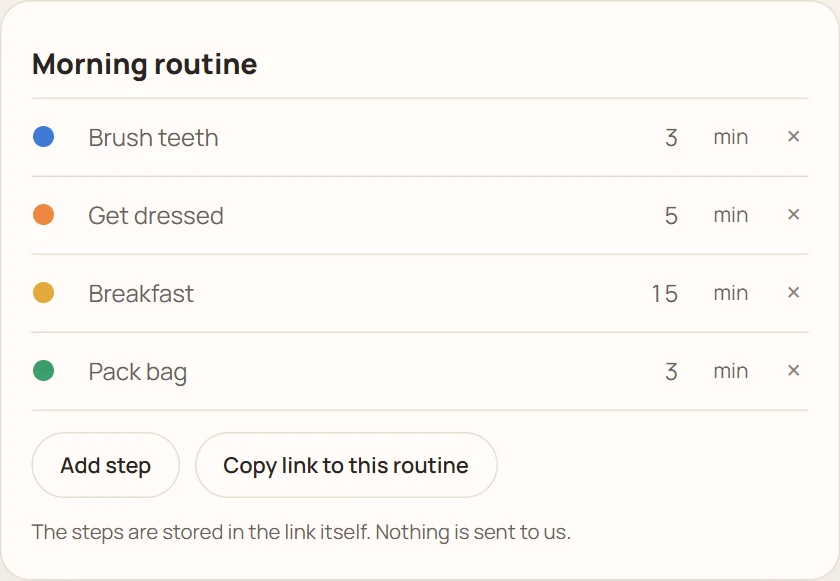 Every step has a color, a name and its own minutes.
Share it with a link
Press Copy link to this routine and send the link to a partner, a grandparent or another teacher. They open it and the same steps are there. The steps are stored in the link itself and are not sent to us.
Three habits that make it work better
- Say the plan before you start. "When the orange is gone, we put the blocks away."
- Let the child press Start. Dragging the dial together makes the time feel like theirs.
- Keep the same steps every day. A routine is easier to follow when it looks the same each time.
When the app is the better choice
A web page needs to stay open, and a phone may pause it when the screen locks. The Mochi Timer app rings with the screen locked, runs several timers at once and has six visual styles. It is free to download on iPhone, iPad and Android.
FAQ
Does the timer keep going in another tab?
On a computer, yes: it keeps counting while you work in another tab. On a phone, keep the page open and the screen on.
Can I make a routine longer than an hour?
Yes. A routine can have up to 12 steps, and each step can be up to 120 minutes.
Do you save my routines?
No. There is no account and we don't store your routines. Copy the link, or bookmark it, to keep one.
Which languages are available?
33, including English, Spanish, French, German, Portuguese, Japanese, Korean, Chinese, Arabic and Hindi. Use the language menu at the top of the page.